



You can now ask Claude to look up your contacts, check how your campaigns did, and draft your next email, right in your Benchmark account. Setup takes a few minutes and uses the Benchmark login you already have. Here’s how to connect it and what to try first.
Watch the walkthrough
Allie from our team connects Claude to her Benchmark account and runs three prompts, start to finish, in about three and a half minutes.
Read the video transcript
Let’s do a brief walkthrough of how to connect Claude to your Benchmark Email account. I’m logged into my Benchmark account, and I’m going to pop over to this help article where you can find the MCP link for your region. Anywhere outside of Japan, we’ll use that second link. I’ll copy the link and head over to my Claude account.
In Claude, I’ll go to Customize, Connectors, and Add Custom Connector. I’m going to name it Benchmark, drop in that MCP link, and click Continue. You can see it connecting. Under Authentication, make sure it says “sign in now” so you can get everything fully connected.
From here, it goes over and asks for permission to access your Benchmark account. It takes a couple of steps. Accept it, then go back to Claude, where it serves up a whole list of different permissions in Benchmark. I’m going to grant them all, but that’s totally your prerogative and what you feel comfortable with. Claude will never be able to send on your behalf, but there’s a lot of other things it can do.
So I’m going to say something like, “Look up how many contacts are in my Benchmark account.” The first time it tries to connect, it might take a couple of extra seconds, but you’ll be able to see everything it’s doing. Without even looking at your Benchmark account, it pulls the number of contacts in your account, which is really awesome. Mine has 65 contacts.
Now I’m going to say, “Look at my last 3 Benchmark campaigns and let me know which performed best.” While it works on that, I’m going to get my next prompt ready: write a Thanksgiving email to my small business customers, and make sure to use the logo in my Brand Kit, which I’ve already set up in my Benchmark account.
You can see that it pulled my last 3 campaigns that were sent. It pulls the opens for me, the percentages, and the clicks, and tells me what might have hurt the open rate and how my account seems to be performing.
Right now, it’s writing a Thanksgiving email in my Benchmark account, which we’ll go look at once it’s finished. I’ve set up my Brand Kit in my account with my logo, so it should be able to pull that into the email. And obviously, the more information you give it about what you’re looking for, your tone of voice, that type of thing, the better the email will be. In less than a minute, it’s working on building that email. It may need some extra permissions. In about a minute, it wrote the email in my account.
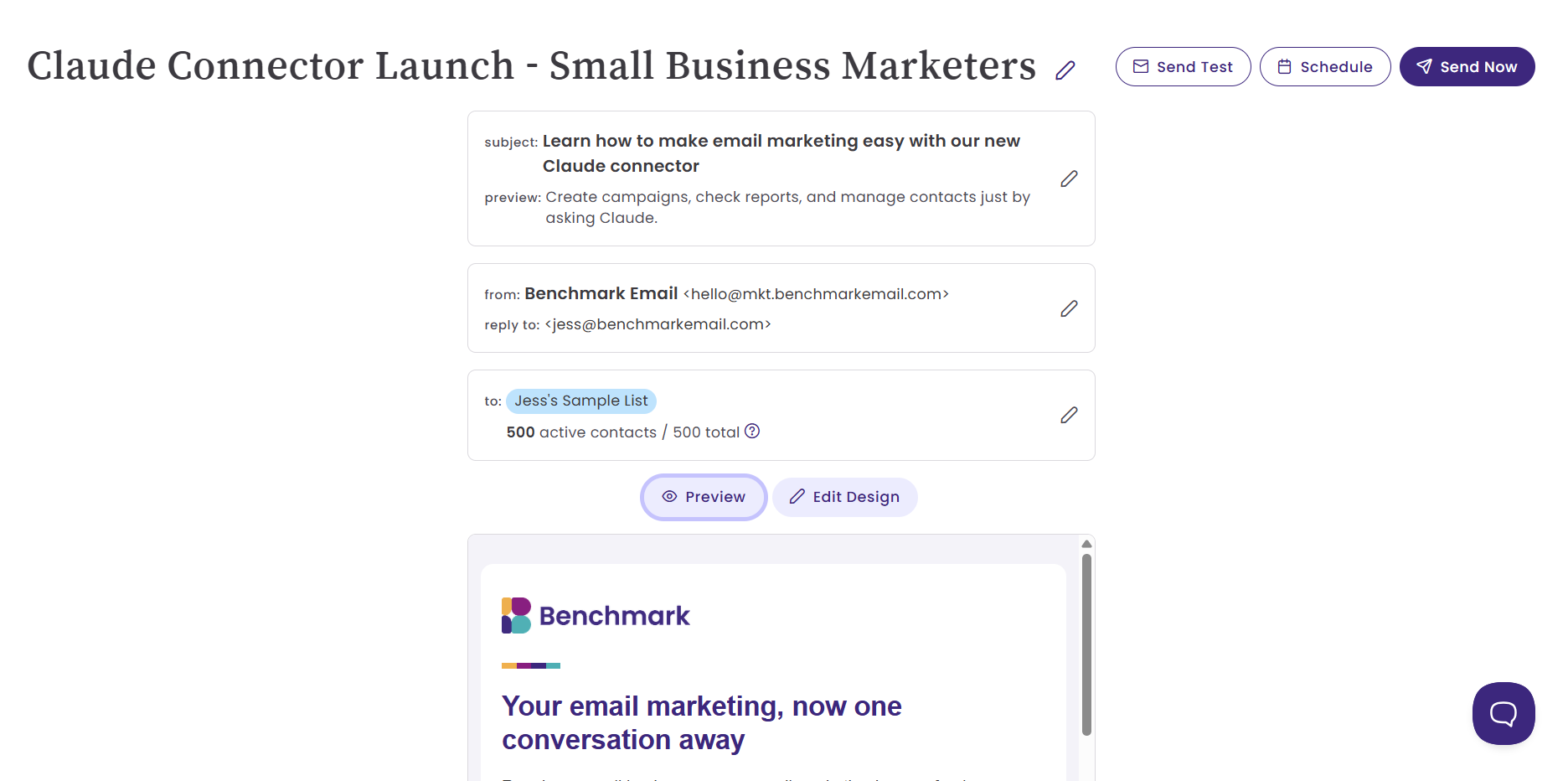
Let’s go back over to my Benchmark account and see what it built. You can see here that it built the email in HTML, pulled in the logo from my Brand Kit, signed it from my company, and it’s ready to make edits and send.
What you need first
- A Benchmark Email account. You can’t sign up through Claude, so create a free account first if you don’t have one.
- A Claude account. The connector works on claude.ai, the Claude desktop app and the mobile app.
- On Claude Team or Enterprise? Your admin may need to add the connector before you can use it.
The connector is included on every Benchmark plan at no extra cost. Your Claude usage follows your Claude plan’s limits.
Connect in Claude
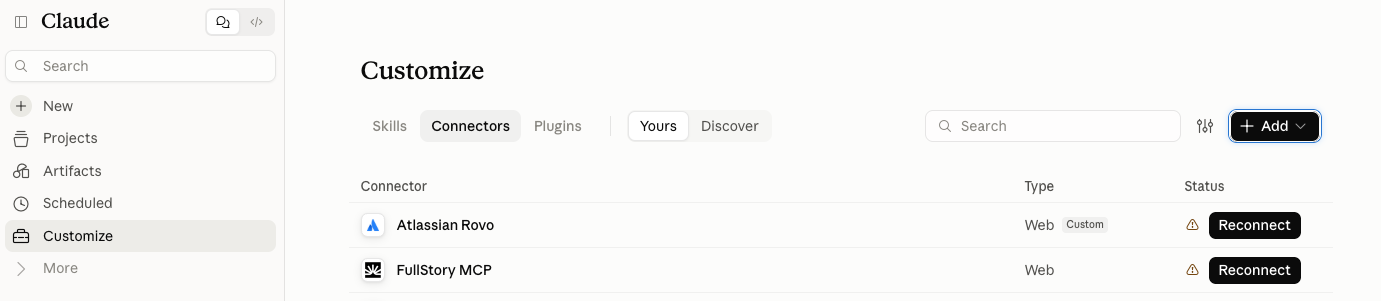
- In Claude, go to Customize, then Connectors. Click + and choose Add custom connector.
- Name it Benchmark, paste the server URL for your region, and click Continue, then Add.
Your account is in Server URL Japan https://mcp-ap-northeast-1-a.benchmarkemail.io/mcpAnywhere else https://mcp-us-west-2-a.benchmarkemail.io/mcp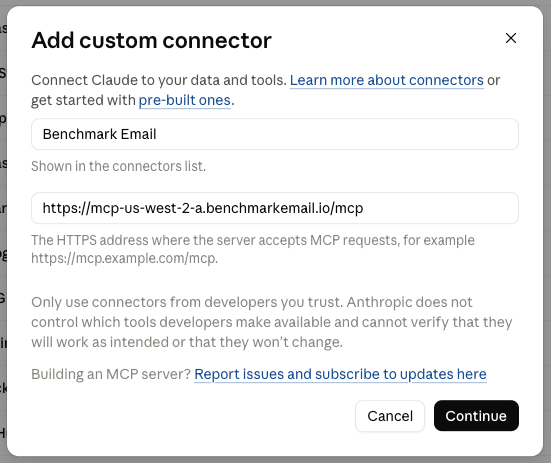
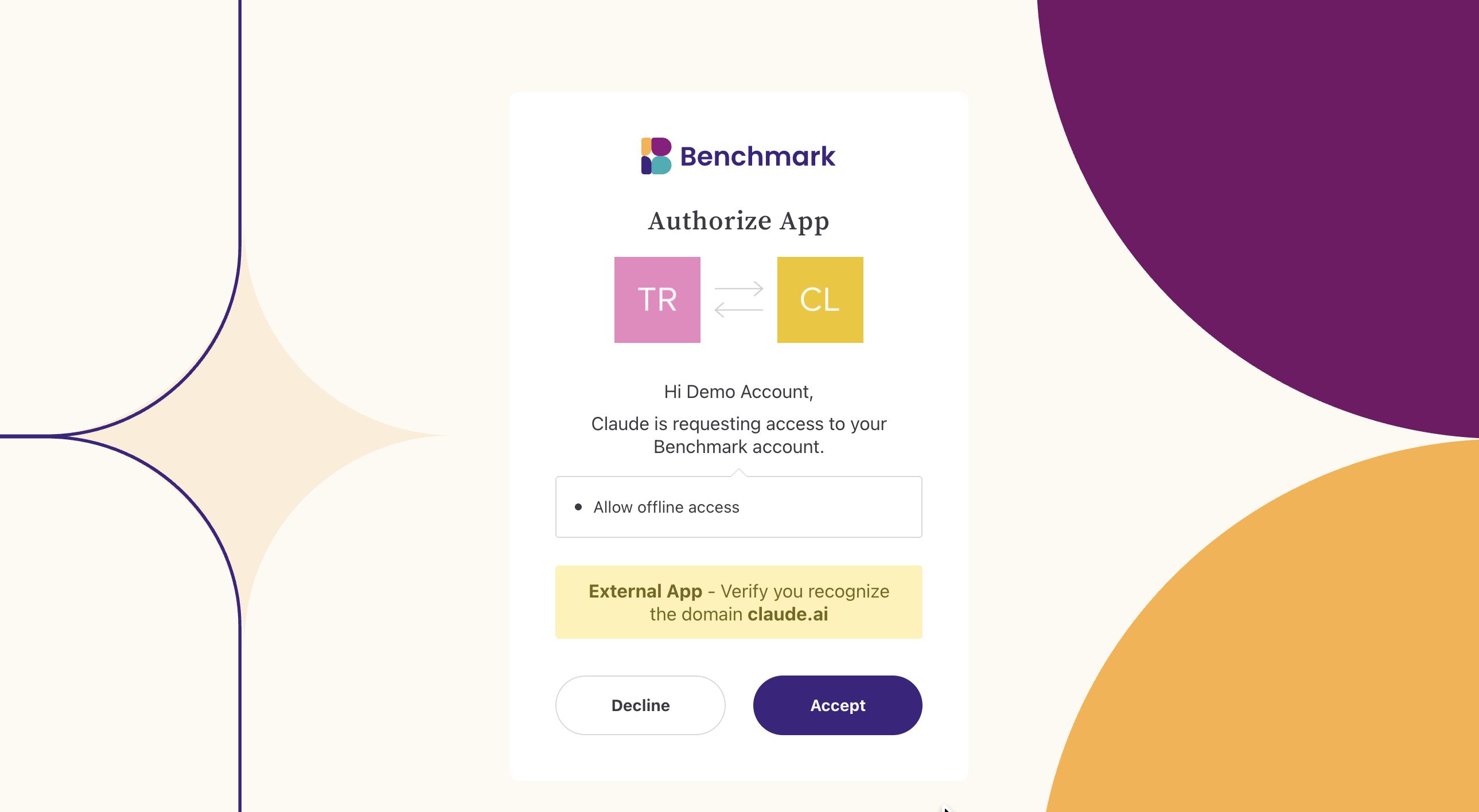
- Click Connect. Benchmark opens and asks for permission to access your account. Sign in and approve.
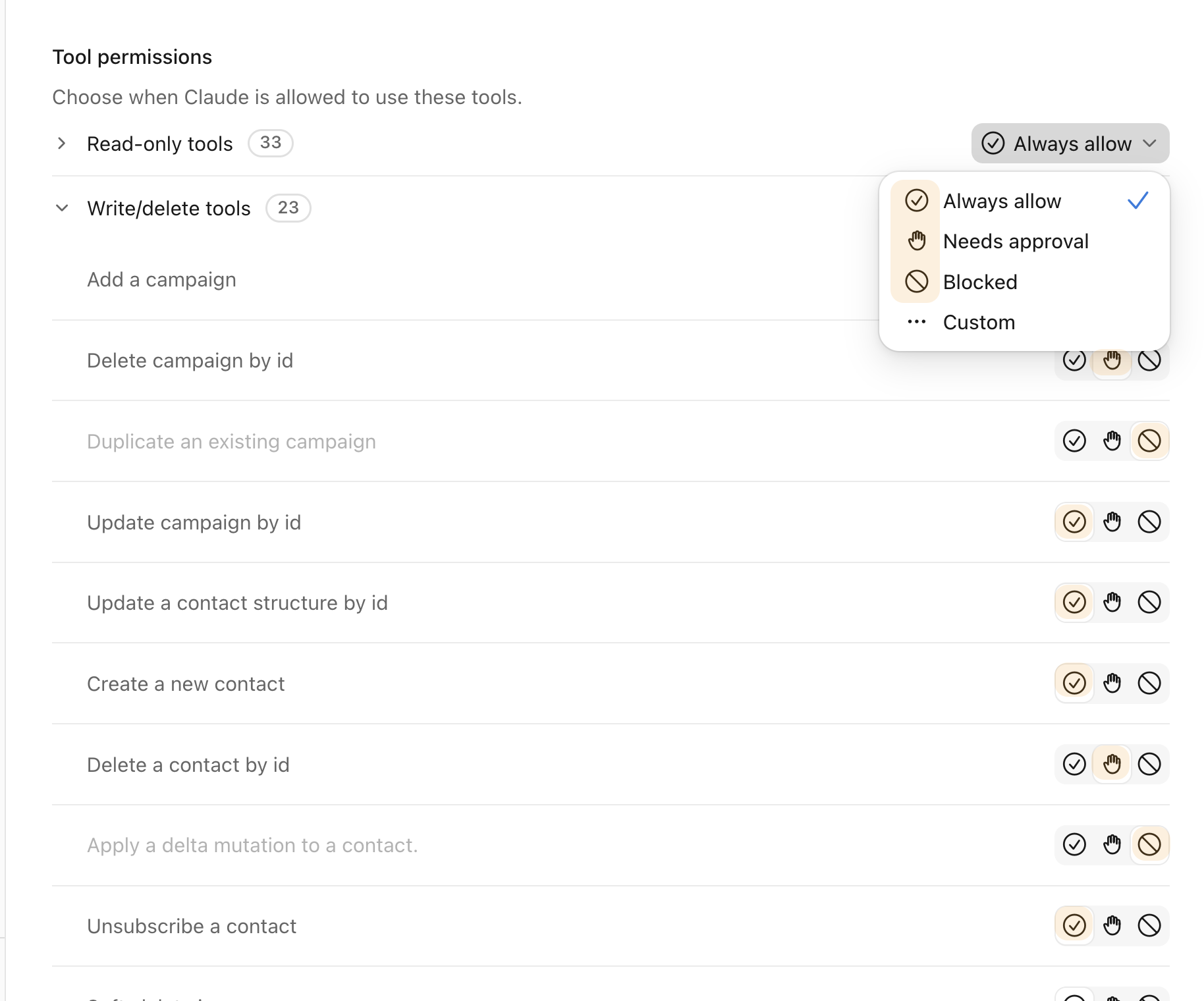
- Back in Claude, you’ll see a list of everything the connector can do. Choose whether each action runs automatically, needs your approval first, or is blocked. Allow as much or as little as you’re comfortable with.
That’s it. Claude never sends emails on your behalf. It saves everything as a draft, and you send or schedule from Benchmark.
Try your first prompt
Open a new chat in Claude Cowork and try these in order. The first request can take a few extra seconds while Claude connects, and you can watch each step as it works.
- “Look up how many contacts are in my Benchmark account.”
- “Look at my last 3 campaigns and tell me which performed best.” Claude pulls opens, clicks and rates, and points out what might be holding your open rate back.
- “Write a New Year’s email to my small business customers. Use the logo in my Brand Kit.” In about a minute, the draft shows up in your Benchmark account, ready for you to edit and send.
The more you tell Claude about your audience, goal and tone of voice, the better the email will be.
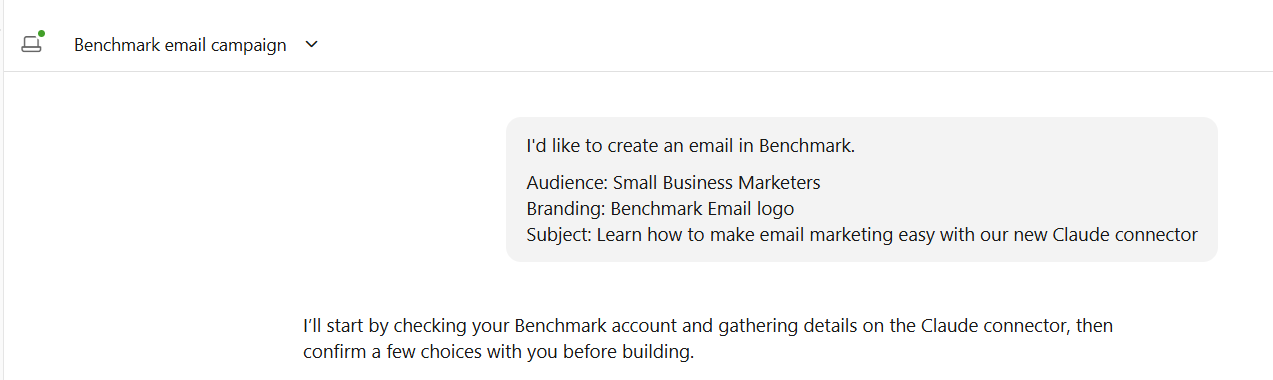
You can preview and adjust your campaign in Claude until you’re happy with the results.
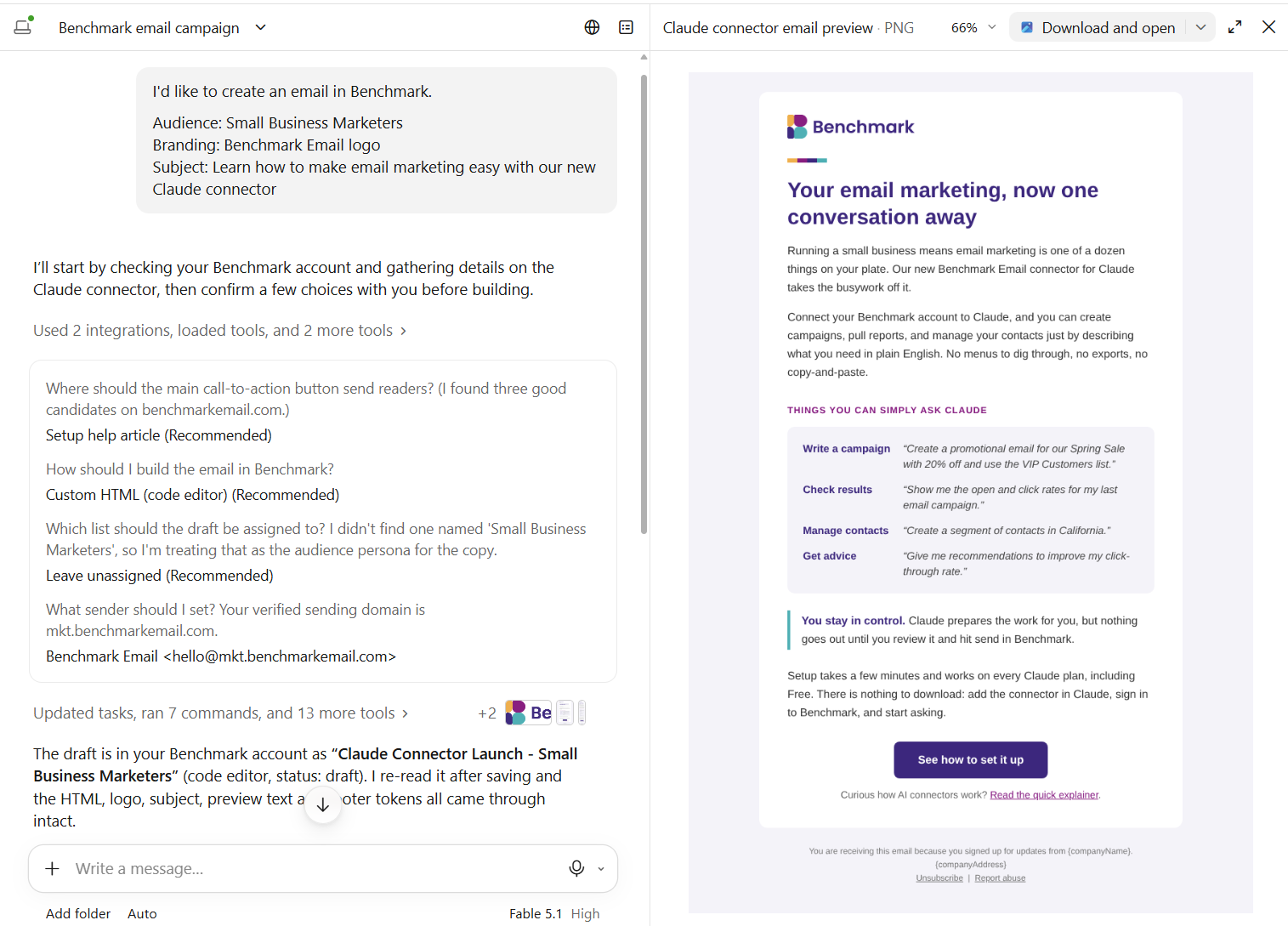
Claude won’t send or schedule an email. You’ll login to Benchmark to review your campaign and send!
Using ChatGPT?
The same connector is coming to ChatGPT soon. We’ll update this guide with the steps as soon as it’s ready.
If something looks off
If the connector won’t connect or Claude can’t find your account, check that you used the right server URL for your region and that you approved access in Benchmark. Still stuck? Our real humans are on support 24/7 and happy to help.
About the Author:

VP Product Marketing | Product, marketing, email | Allie Wolff is VP of Product Marketing at Benchmark Email, where she drives measurable product growth through compelling positioning, messaging, and go‑to‑market strategies. With over 18 years of expertise spanning B2B SaaS and email marketing, she’s spearheaded landmark initiatives—from the Canva integration to the rollout of Smart Content—bringing clarity and impact to busy marketers everywhere .