


Key Takeaways
- One free prompt does the technical work. Benchmark Email’s HTML email prompt already contains the rules for inbox-safe HTML. You just fill in a short brief at the end.
- It builds from your website. Point the prompt at your site, and your AI tool can pull in your logo, images, and brand details, so the email looks like your business.
- It’s made for Benchmark Email. The prompt removes the footer because Benchmark Email adds one automatically, and it produces HTML that fits the HTML editor.
- It works with the AI tool you already use. ChatGPT, Claude, Gemini, and Perplexity all work.
- Sending works like any other campaign. Paste the HTML into Benchmark Email’s HTML editor, add a first-name merge tag, and send. It renders just like an email built in the drag-and-drop editor.
You don’t need to know how to write HTML to send a custom HTML email. You need a good prompt, your website, and a few minutes.
This walkthrough shows how to use ChatGPT and Benchmark’s free prompt to generate an inbox-ready HTML email, then send it from Benchmark Email. No coding. No template library hunting. No design tool required.
Why Use AI for HTML Email?
HTML email has its own set of rules, which makes it harder than building a webpage. Web HTML and email HTML aren’t the same thing. Code that looks fine in a browser can fall apart in the inbox, especially in clients like Outlook that don’t support modern CSS layout.
Most marketers don’t want to learn all of that. They want an email that looks great, loads correctly, and gets clicked. That’s why the prompt matters. Benchmark Email’s prompt is long and technical on purpose: it holds the checklist your AI tool needs to build HTML that won’t break in the inbox. You don’t need to understand any of it. You just need to fill in the brief.
Where to Find the Prompt
The prompt lives on Benchmark Email’s HTML email agent page, along with other resources for building HTML email templates. You’ll find the tools and rules you need to generate HTML that holds up in the inbox.
The prompt works with whichever AI platform you use: ChatGPT, Claude, Gemini, or Perplexity. The walkthrough below uses ChatGPT, with a local coffee shop’s campaign for its nonprofit support program as the example.
Step-by-Step: From Prompt to Sent Email
Here is a video tutorial, and below it, the process is written out step by step so you don’t miss anything.
Step 1: Copy the prompt and paste it into ChatGPT
Copy the full prompt from the HTML email agent page, open a new ChatGPT conversation, and paste it in.
Leave the prompt itself alone. Edit only the brief at the end.
Step 2: Fill out the brief
The brief tells the AI what this specific email is for. Fill in:
- Your website URL. The AI reads your site to match your brand. You can point it to a specific page if the email is about one product, program, or offer.
- What the email is about. For example, promoting a new product, an event, or a community program.
- What you want readers to do. This becomes your call to action.
- Anything else. Add your tone and other details here. In the demo, I ask for a friendly tone, ask the AI to pull the logo from the website, and request a first-name greeting placeholder.
Then send it. ChatGPT may ask a follow-up question or two before it starts.
Step 3: Let the prompt do the technical work
While ChatGPT reads your website, it builds the email against the prompt’s checklist. For Benchmark Email specifically, it:
- Removes the footer. Benchmark Email automatically adds your footer (including the unsubscribe link) in the HTML editor, so the prompt leaves it out to avoid a duplicate.
- Makes the HTML inbox-ready. It converts anything that works on the web but not in email into code that fits Benchmark Email’s HTML editor.
Generating the code can take a minute. While you wait, you can open Benchmark Email and get the editor ready.
Step 4: Open the HTML editor in Benchmark Email
In Benchmark Email:
- Go to Emails, then Create New Email.
- Select the custom HTML tab.
- Choose how you want to add your code:
- Start from scratch to paste the HTML in directly.
- Upload an HTML file if your AI tool gave you a file instead.
Step 5: Copy the HTML the right way
When ChatGPT finishes, copy the HTML from inside the code block, using the copy option on the block itself.
This matters more than you’d expect. If you select and copy the whole response, you can pick up extra text along with the code, like ChatGPT’s note about how long it spent thinking. That stray text will end up in your email.
Step 6: Paste it into the editor
Paste the HTML into Benchmark Email’s HTML editor. In the demo, the email appears right away with the coffee shop’s logo, an image pulled from its website, and even its QR code, all built from the website and the brief.
Step 7: Add a first-name merge tag with a fallback
If you asked for a first-name greeting placeholder in your brief, swap it for a real merge tag so each subscriber sees their own name:
- Find the greeting placeholder in the HTML.
- Remove it, then use the Personalize tool in the HTML editor to insert the first-name merge tag.
- Set a fallback, such as “there,” so contacts without a first name on file see “Hi there,” instead of an awkward “Hi,”.
- Adjust the punctuation around the greeting if needed.
Step 8: Save and finish the send checklist
Save your email, then finish the checklist just like any other campaign:
- Select your contacts.
- Add your sender name.
- Write your subject line and preview text.
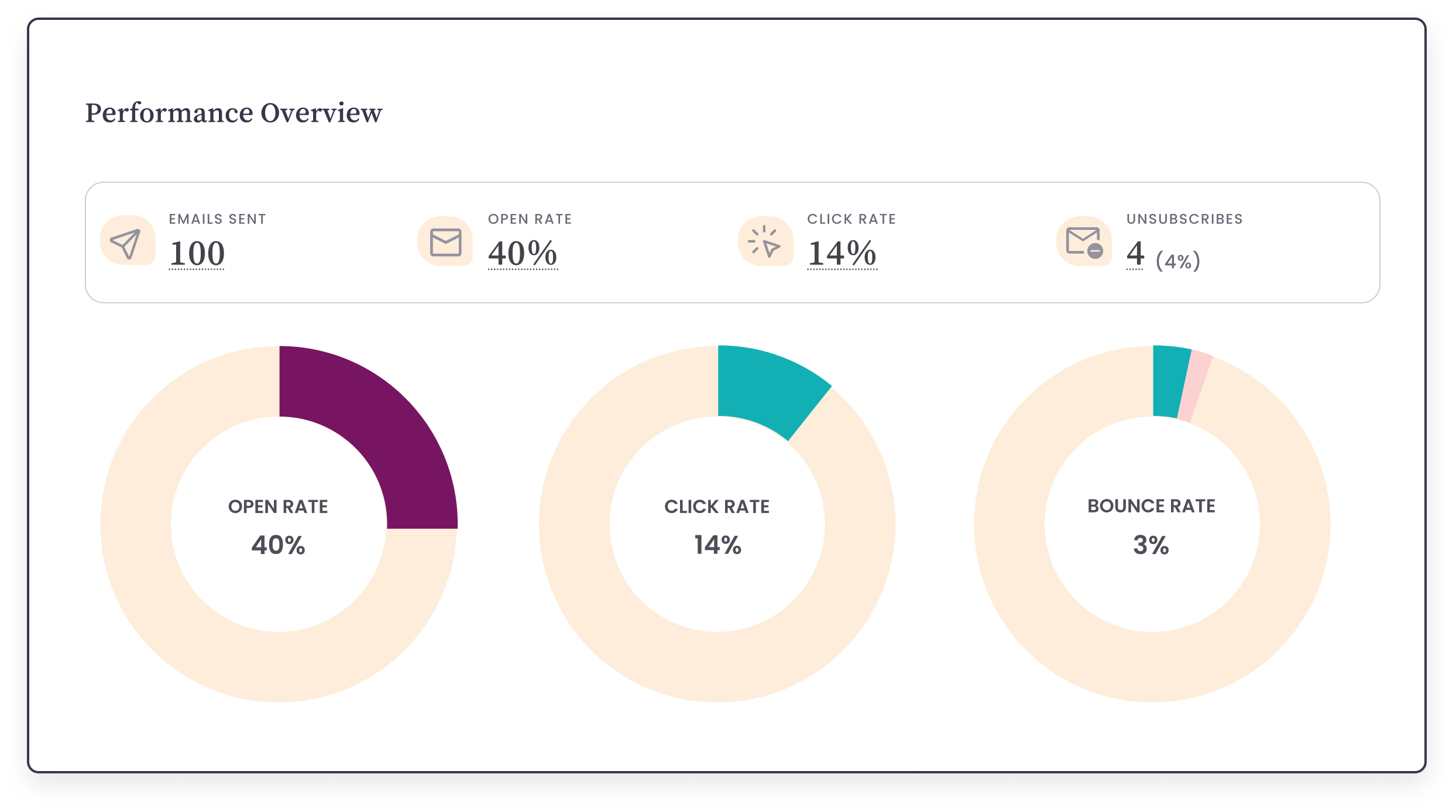
Then send. Your HTML email renders like any other email you’ve built in Benchmark Email’s drag-and-drop editor, with full reporting on opens and clicks.
Making the Most of the Workflow
- Point the brief to the right page. If your email is about one offer or program, link directly to that page on your site. The more specific the source, the more specific the email.
- Say what you want in “anything else.” Tone, logo, greeting style, and anything you want the AI to include or avoid all go here. It’s the easiest way to get closer on the first try.
- Send yourself a test. Before you send to your full list, send a test email and check it on desktop and your phone.
- Reuse your AI conversation. Once you have an email you like, keep the conversation. For the next campaign, you can ask for a new version with different content while keeping the same design.
- Use it for subject lines too. After generating your HTML, ask your AI tool for a few subject line and preview text options so you have choices to test.
Frequently Asked Questions
Do I need to know how to code to use this?
No. The prompt handles the technical rules for you. You fill in a brief in plain language, copy the HTML your AI tool generates, and paste it into Benchmark Email. The only edit in the demo is swapping the greeting placeholder for a first-name merge tag, which you do with the editor’s Personalize tool.
Do I need a paid ChatGPT account?
No. You can use the prompt with the free version of ChatGPT. If your email is especially complex, a paid plan may give you more room, but it isn’t required to follow this workflow.
Can I use this prompt with Claude, Gemini, or Perplexity?
Yes. The prompt works with whichever AI platform you already use. The demo uses ChatGPT, but the steps are the same: paste the prompt, fill in the brief, and copy the HTML it returns.
Why doesn’t the email include a footer or unsubscribe link?
Benchmark Email automatically adds your footer, including the unsubscribe link, to emails built in the HTML editor. The prompt removes the footer from the generated HTML, so your email doesn’t end up with two.
What if my AI tool gives me an HTML file instead of code?
Benchmark Email’s HTML editor has two options: start from scratch and paste in your code, or upload an HTML file. Use whichever matches what your AI tool gave you.
What if the email doesn’t look right?
Go back to the same AI conversation and describe what you want changed, like “Make the headline shorter” or “Use a different image from the website.” Then copy the updated HTML from the code block and paste it into the editor again.
How do I personalize the greeting?
Include a first-name greeting placeholder in your brief. After pasting the HTML into Benchmark Email, replace the placeholder with the first-name merge tag from the Personalize tool and set a fallback like “there,” so every contact gets a complete greeting.
About the Author:

VP Product Marketing | Product, marketing, email | Allie Wolff is VP of Product Marketing at Benchmark Email, where she drives measurable product growth through compelling positioning, messaging, and go‑to‑market strategies. With over 18 years of expertise spanning B2B SaaS and email marketing, she’s spearheaded landmark initiatives—from the Canva integration to the rollout of Smart Content—bringing clarity and impact to busy marketers everywhere .