


How to Use AI to Create an HTML Email That Actually Works

Key Takeaways
- Email HTML follows its own rules (table-based layouts, inline CSS, and a max width of 600px), and you just need to tell your AI that it’s writing an email, not a webpage.
- The right prompt does the heavy lifting: include your structure, tone, brand colors, and the technical requirements paragraph, and you’ll get inbox-ready HTML in seconds.
- Images must be hosted at a live public URL before you paste them into a prompt. A file on your desktop won’t appear in anyone’s inbox.
- Benchmark Email’s new HTML editor lets you paste or upload your AI-generated code, preview it in both desktop and mobile views, and add personalization merge fields without touching the HTML.
- Compliance is handled automatically. Benchmark appends your unsubscribe link and mailing address to every send, so you don’t need to prompt for them (and should specifically tell the AI to leave them out).
- AI handles the writing; the audience, preview check, and final send still belong to you.
Ask Claude or ChatGPT to write a marketing email for you, and you’ll have working HTML in about 30 seconds. It’s one of the things AI is truly good at.
The trouble starts after the paste. Email HTML follows different rules than the web, and code that looks flawless in a chat window can fall apart in an inbox. Even a perfect file needs a home: a way to reach your list, track what happens, and stay compliant.
This guide covers the whole trip. How to prompt for HTML that renders well in email clients, how to check it, and how to send it using Benchmark Email’s new HTML editor.
Why email HTML isn’t regular HTML
Web browsers forgive almost anything. Email clients don’t. Some strip out styles they don’t like, some ignore modern layout techniques entirely, and most cap your usable width around 600 pixels. That’s why professional email HTML still runs on old-school building blocks: table-based layouts, inline CSS, and web-safe fonts.
You don’t need to learn any of that. Your AI assistant already knows it. It just needs to be told it’s writing an email, not a webpage. That single instruction is the difference between HTML that survives the inbox and HTML that doesn’t.
From prompt to sent, in five steps
1. Gather your ingredients
AI can only work with what you give it. Before you prompt, collect your copy (or at least the points you want to make), the links your buttons should go to, your brand colors, and your image URLs. That last one matters: images in an HTML email need to be hosted at a public web address, such as your website’s media library. A photo sitting on your desktop can’t appear in anyone’s inbox.
2. Prompt for email HTML, not webpage HTML
Spell out the technical requirements: 600 pixels wide, tables for layout, all styles inline, alt text on every image, a single column that stacks nicely on phones. The starter prompt below does this for you, so you can skip straight to filling in the blanks.
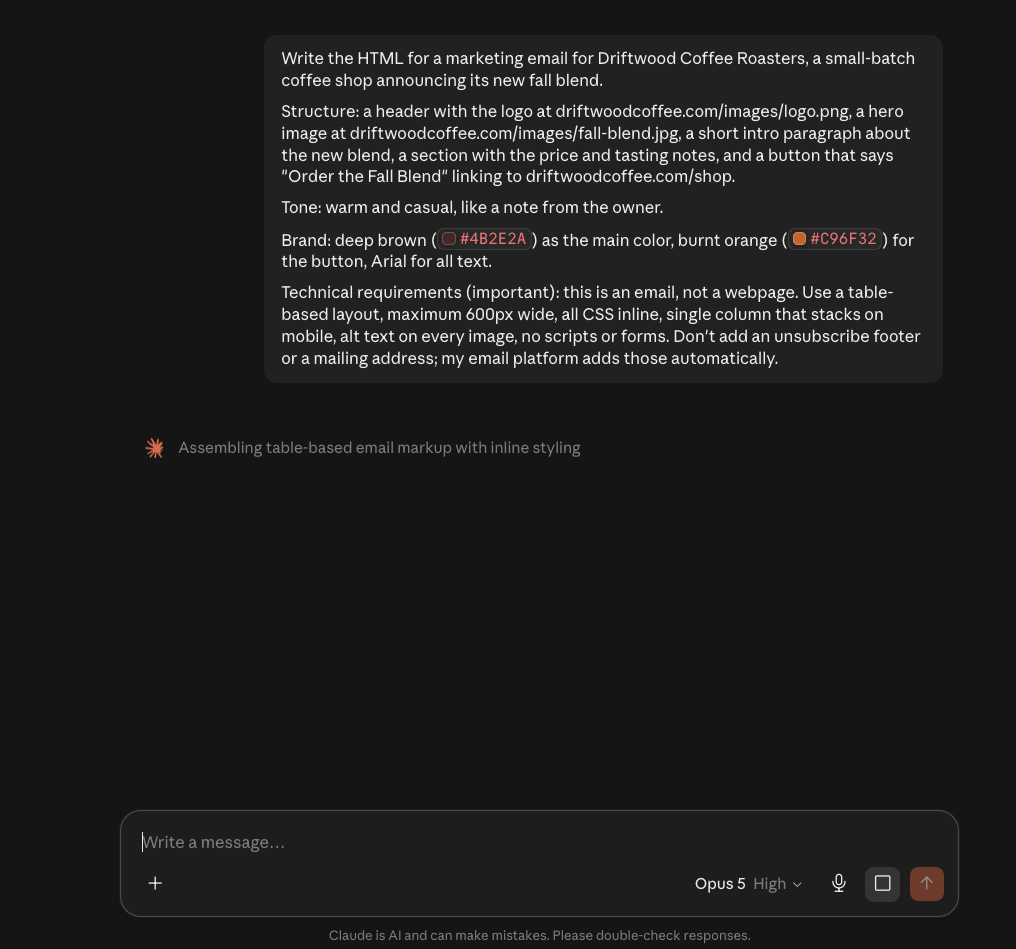
One prompt, working email HTML.
3. Review it like an editor, not an engineer
Read the result like a customer. Wrong color, clunky sentence, missing link? Tell the AI what’s off and let it fix its own code. You never have to touch the HTML yourself.
4. Bring it into Benchmark
Start a new email in the new Benchmark Email and choose the Custom HTML option. Paste your code or upload the file, and your email renders in a live preview in both desktop and mobile views as you go. If something in the code is structurally off, you’ll see a plain-English note about it before you send, and your work never gets wiped. Want to greet every subscriber by name? Use the Personalize picker to drop merge fields straight into your HTML.
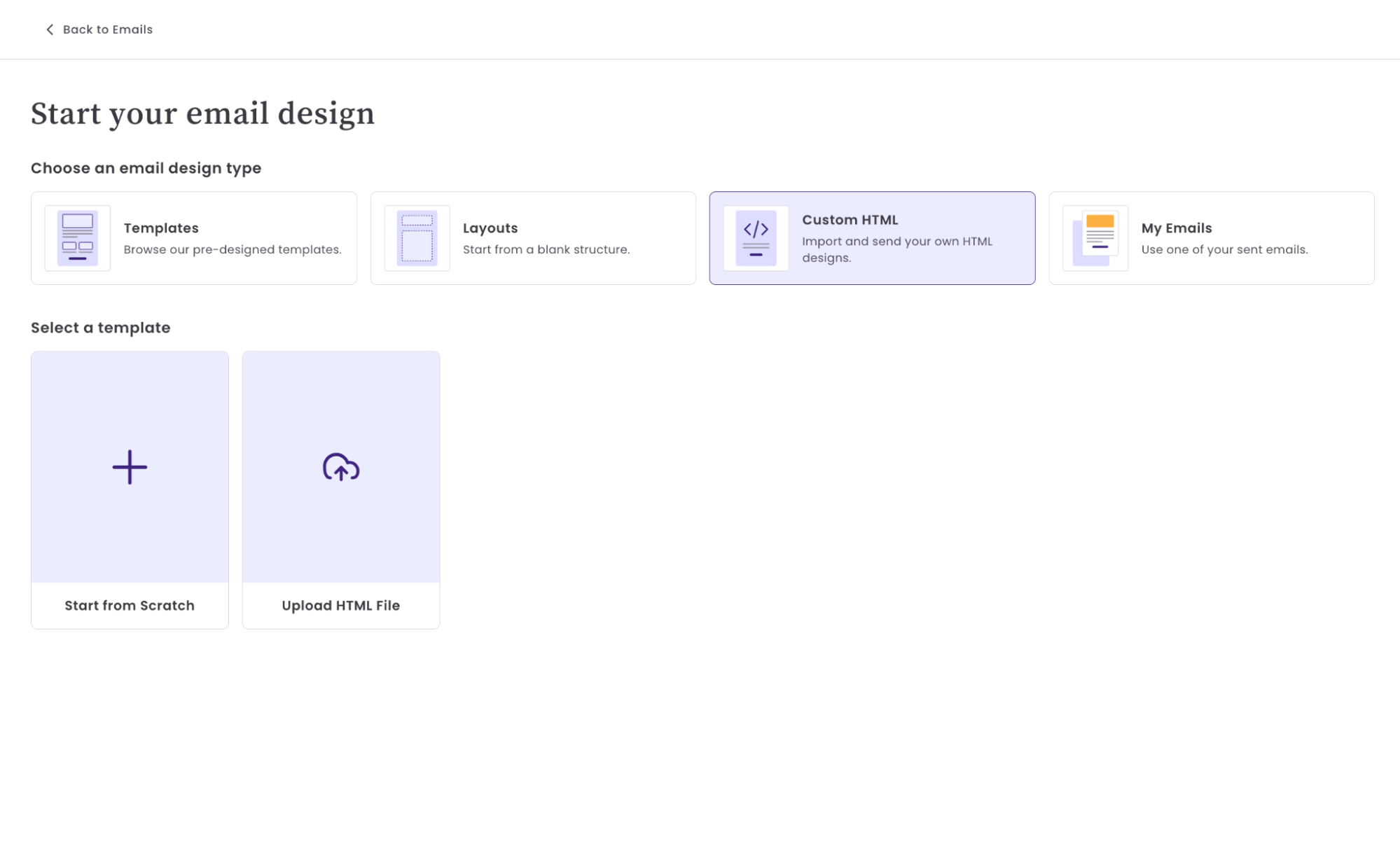
Two ways in: paste your code or upload the file.
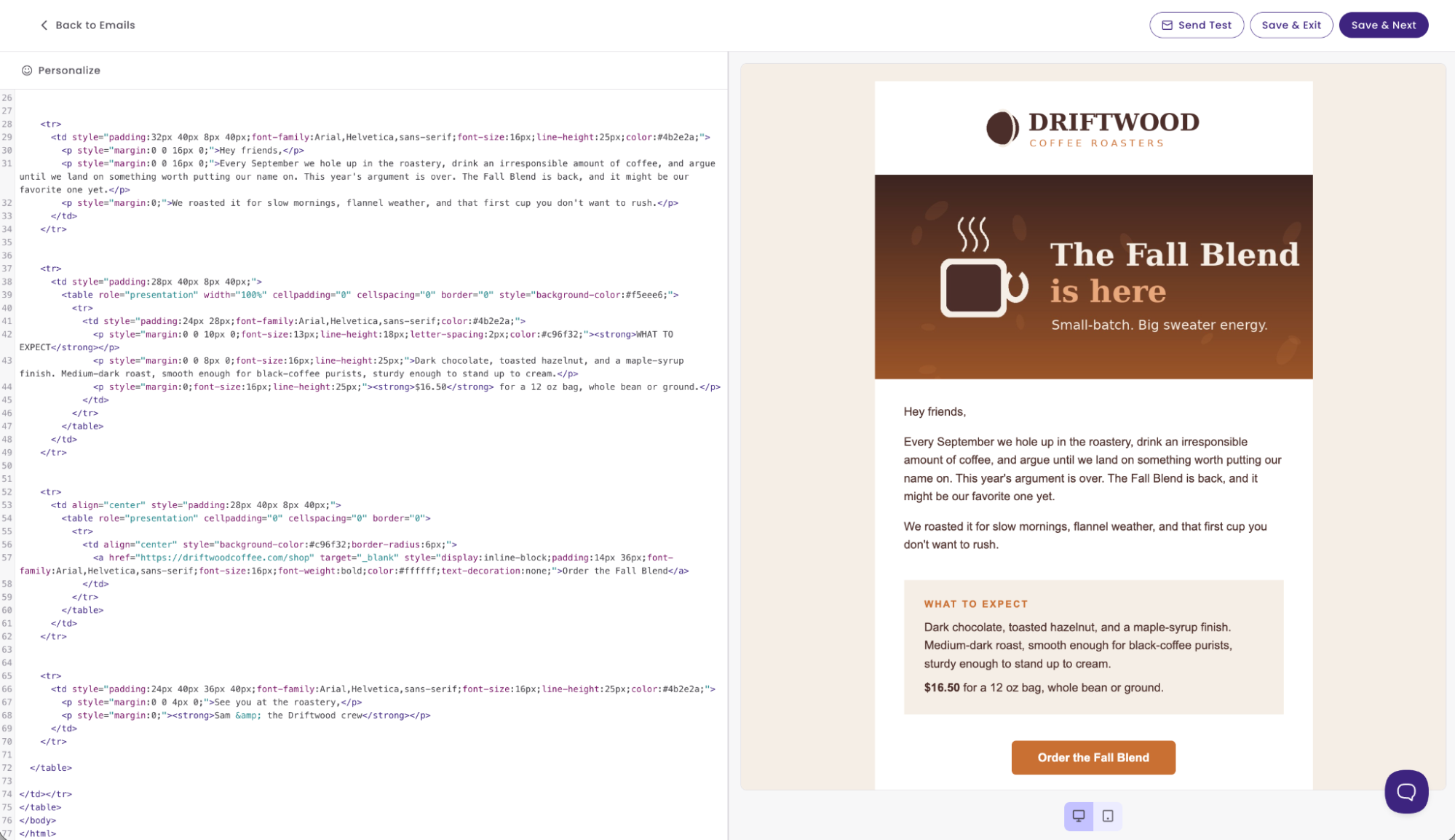
Your HTML on the left, your email on the right.
5. Test, then send
Send a test to yourself and open it in the inbox you actually use. When it looks right, run the same checklist as any Benchmark campaign: subject line, from address, contact list, schedule. Benchmark automatically adds your unsubscribe link and mailing address to every send, so compliance details are handled without you having to think about them. After that, opens, clicks, and reports work the same way they do for every other email you send.

The same checklist as every Benchmark campaign.
A starter prompt you can steal
Here’s a filled-in example. Paste it into Claude or ChatGPT as is to see a real result, then make it your own.
Write the HTML for a marketing email for Driftwood Coffee Roasters, a small-batch coffee shop announcing its new fall blend.
Structure: a header with the logo at driftwoodcoffee.com/images/logo.png, a hero image at driftwoodcoffee.com/images/fall-blend.jpg, a short intro paragraph about the new blend, a section with the price and tasting notes, and a button that says “Order the Fall Blend” linking to driftwoodcoffee.com/shop.
Tone: warm and casual, like a note from the owner.
Brand: deep brown (#4B2E2A) as the main color, burnt orange (#C96F32) for the button, Arial for all text.
Technical requirements (important): this is an email, not a webpage. Use a table-based layout, maximum 600px wide, all CSS inline, single column that stacks on mobile, alt text on every image, no scripts or forms. Don’t add an unsubscribe footer or a mailing address; my email platform adds those automatically.
To make it yours, swap out four things: the business and the announcement in the first line; the image and button URLs (yours need to be real, hosted addresses); the tone line; and the brand colors and font. Keep the technical requirements paragraph exactly as it is. That part is doing the heavy lifting.
One detail worth noticing: the prompt tells the AI to skip the unsubscribe footer. That’s because Benchmark automatically adds a compliant one to every campaign, and two footers are one too many.
What AI can’t do (yet)
Your assistant can write the email. It can’t see your contact list, doesn’t know who clicked last month, and can’t press send. Choosing your audience, checking the preview, and approving the send still belong to you. That’s the part worth keeping human anyway: nobody knows your subscribers like you do.
Frequently Asked Questions
Do I need to know how to code to use AI-generated HTML emails?
No. You describe what you want in plain language, and the AI writes the code. If something looks off, you just tell it what to fix. You never have to edit the HTML yourself.
Why does my AI-generated email look broken in my inbox?
The most common reason is that the prompt didn’t specify email formatting requirements. Email clients are far stricter than web browsers, so the AI needs to be explicitly told to use a table-based layout, inline CSS, and a 600px max-width. The starter prompt in this post includes all of that.
Can I use images from my computer in the email?
Not directly. Images need to be hosted at a publicly accessible web address (such as your website’s media library) so email clients can load them. Grab those URLs before you write your prompt.
What if I want to personalize the email with each subscriber’s name?
Benchmark Email’s HTML editor includes a Personalize picker that lets you insert merge fields, such as a first name, directly into your HTML without editing the code manually.
Does Benchmark add an unsubscribe link automatically?
Yes. Benchmark appends a compliant unsubscribe link and mailing address to every campaign. That’s why the starter prompt tells the AI to skip the footer, since you don’t want two.
Can AI choose my contact list or schedule my send?
Not yet. AI can draft and format your email, but you still select your audience, review the preview, and approve the send in Benchmark.
About the Author:

VP Product Marketing | Product, marketing, email | Allie Wolff is VP of Product Marketing at Benchmark Email, where she drives measurable product growth through compelling positioning, messaging, and go‑to‑market strategies. With over 18 years of expertise spanning B2B SaaS and email marketing, she’s spearheaded landmark initiatives—from the Canva integration to the rollout of Smart Content—bringing clarity and impact to busy marketers everywhere .