


How to Create an HTML Email Using Benchmark’s Claude Skill
Key Takeaways
- The Claude Skill is a free download from Benchmark Email. You get it from Benchmark’s HTML Email Agent page, which links to the skill on GitHub. Then you add it to your own Claude account.
- You use the skill in Claude, not inside Benchmark. Upload it once under Claude’s Settings > Skills, in either the desktop app or the web version. After that, it’s available in any new Claude conversation.
- A detailed brief gets you a better email. Give Claude your goal, brand colors, logo, links, and key details. The skill turns that into email-safe HTML that’s built not to break in the inbox.
- Paste the result into Benchmark’s Custom HTML editor. Copy the HTML Claude generates, or upload the file it gives you, then add your merge tags and send as usual.
- Not using Claude? The HTML Email Agent page also has a prompt that works with ChatGPT, Gemini, Perplexity, Copilot, and other AI assistants.
Building a custom HTML email used to mean writing table-based code by hand, fighting Outlook rendering quirks, and spending more time debugging than designing. For most marketers, that was enough of a barrier to stick with drag-and-drop templates and leave the custom work to someone else.
Benchmark Email’s Claude Skill changes that. You add it to Claude once. From then on, you can describe the email you want and get back inbox-ready HTML that you can drop straight into Benchmark and send.
This post walks you through how to install it, use it, and get the most out of it.
What Is Benchmark’s Claude Skill?
A Claude Skill is a packaged set of instructions and rules that you add to your Claude account. Claude can then call on it for a specific task. Benchmark Email built one for HTML email. It gives Claude the tools and rules it needs to write email-ready HTML that stays compliant and won’t break in the inbox.
The skill lives in your Claude account, not in Benchmark. You work in Claude to create the email, then bring the finished HTML into Benchmark’s editor to send it.
Because it’s built for email, the skill accounts for things a regular webpage doesn’t have to worry about, like how different inboxes and email clients display HTML. You can use it to:
- make full templates from a brief
- adjust colors, fonts, and layout
- add or remove sections
- produce variations for A/B testing
You do all of this by chatting with Claude in plain language.
If your team uses a different AI assistant, the same HTML Email Agent page has a prompt that works with ChatGPT, Gemini, Perplexity, Copilot, and others. This guide covers the Claude Skill.
Step-by-Step: Creating an HTML Email with the Claude Skill
Here is a video tutorial on creating an HTML email using Benchmark Email’s Claude Skill.
Below are the steps for more clarity.
Step 1: Download the skill from Benchmark’s HTML Email Agent page
Go to Benchmark’s HTML Email Agent page and click Download the Skill. That takes you to GitHub. GitHub isn’t just for developers. All you need to do there is click the skill link, and the file downloads to your computer.
Step 2: Upload the skill to Claude
Open Claude. The desktop app and the web version both work. Go to Settings > Skills and choose to upload a skill, then drag and drop the file you just downloaded. Once it’s installed, you’ll see the Benchmark HTML email skill in your skills list.
You only need to do this once. After that, you can use the skill whenever you need it.
Step 3: Start a new Claude chat and share your brief
Open a new conversation in Claude and ask it to use the Benchmark email skill to draft a new HTML email. Then paste in your brief. The better the input, the better the output, so include as much as you can:
- The purpose of the email. Is it a promotional offer, newsletter, product announcement, or welcome message?
- The details. The offer, program, or story, plus any links, QR codes, or images you want included.
- Your brand details. Brand colors (hex codes are best), fonts, and where to find your logo, either a link to the file or your website.
- The sections you need, in the order you want them. Or let Claude propose a layout.
If you’ve already set up brand guidelines or logo files in your Claude account, you can point to those in your brief too.
An example prompt:
“Use the Benchmark email skill to draft a new HTML email. Brief: We’re a local coffee shop promoting our ‘Love Your Neighbor’ latte program, where a portion of every latte sale supports a local nonprofit. Use our brand colors (
#4A2C2Aand#F5E6D3), pull our logo from [website URL], include a CTA button linking to [URL], and add the QR code from [page URL]. Keep the copy warm and community-focused.”
Claude may ask for permission to access pages or files you’ve pointed it to. Approve those so it can pull in what it needs.
Step 4: Open the Custom HTML editor in Benchmark
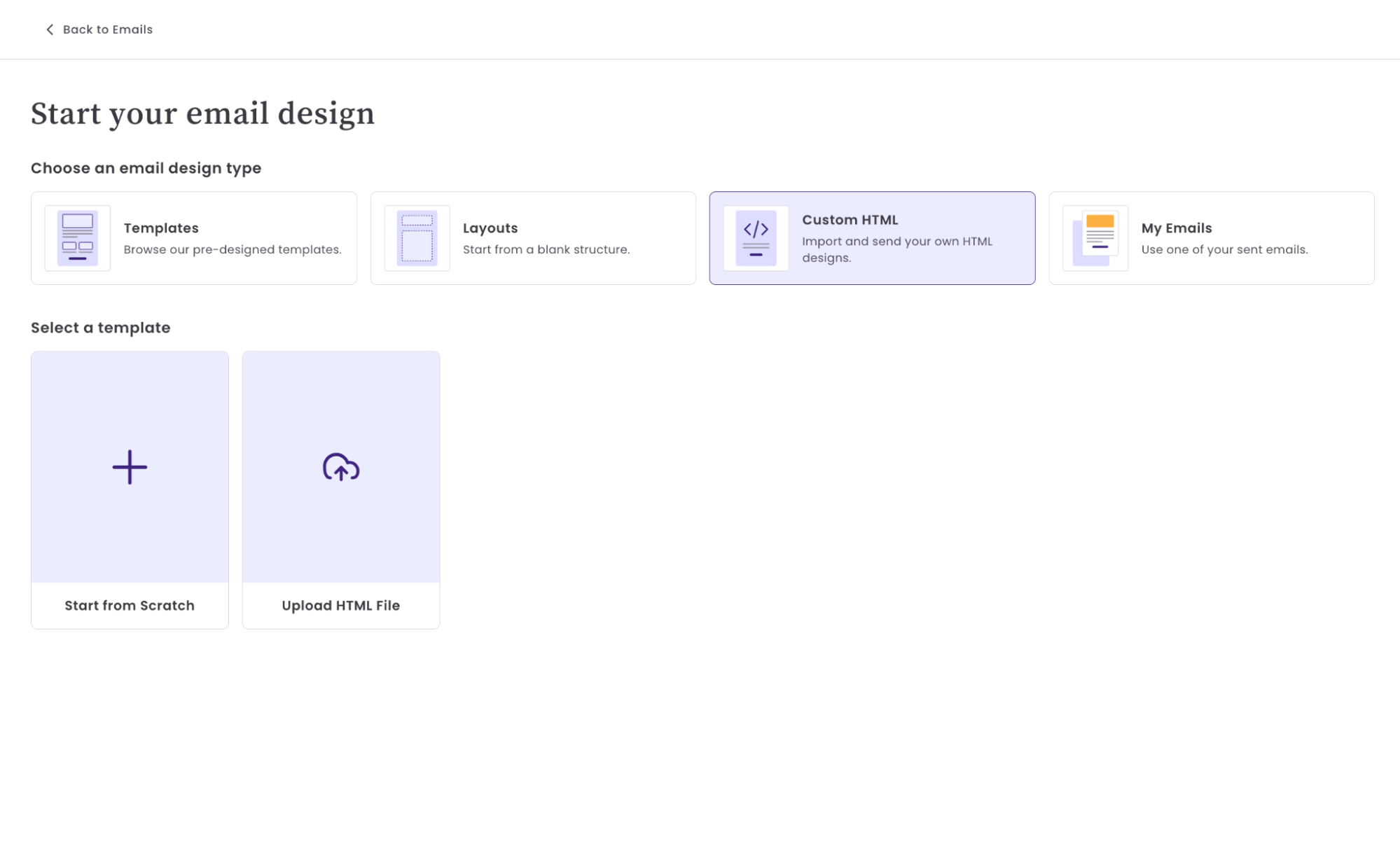
While Claude is drafting, get Benchmark ready. In your Benchmark Email account, go to Emails > Create New Email and choose Custom HTML. You’ll have two options:
- Start from scratch: write or paste your HTML directly into the editor.
- Upload a file: if your AI assistant gives you an HTML file, drop it in here.
Step 5: Review and refine in Claude
When Claude finishes, it will give you HTML you can copy, a file you can download, or both. Look over the preview and check:
- Does the structure match your brief?
- Are the colors, links, and images correct?
- Does the CTA stand out?
Don’t worry if the logo looks broken in Claude’s preview. It often displays fine once the HTML is in Benchmark’s editor.
If something needs changing, just tell Claude in the same conversation. You don’t have to start over:
- “Increase the headline font size to 32px.”
- “Change the button border radius to 6px.”
- “Add a two-column section below the hero with an image on the left and text on the right.”
- “Simplify the footer to just the unsubscribe link and company address.”
Claude can also help with copy: “Give me three subject line options for this email.”
Step 6: Paste into Benchmark and add your merge tags
Copy the final HTML and paste it into the Custom HTML editor, or upload the file.
Next, add your merge tags. Merge tags are unique to each Benchmark account, so the skill can’t include them for you. Use the HTML editor to insert tags like first name, and set a fallback value so the email still reads naturally when a contact’s field is blank.
Step 7: Finish the checklist and send
Click Save & Next and go through Benchmark’s normal email checklist: choose the list you’re sending to, add a subject line and preview text, and set your sender details. Send a test email to yourself and check it in Gmail, Outlook, and on your phone. Then you’re ready to go.
Tips for Getting Better Results
- More context, better output. The skill works best with a detailed brief. Share the real details of your offer, your links and images, and your brand rules. Don’t leave Claude to guess.
- Be specific about your brand. “Blue” means different things to different people. Hex codes like
#0033CCgive Claude something precise to work with and get you much closer on the first try. - Point Claude to your sources. A link to your website or a landing page lets Claude pull in logos, images, and program details directly.
- Use it for variations, not just first drafts. Once you have a working email, ask Claude for A/B variants, such as a different CTA color, a shorter version, or no hero image.
- Ask for explanations when something looks wrong. If a section isn’t rendering as expected, paste it into Claude and ask: “This section isn’t centering correctly in Outlook. What’s causing it and how do I fix it?”
Frequently Asked Questions
Is the Claude Skill built into Benchmark Email?
No. You add the skill to your own Claude account. You download it from Benchmark’s HTML Email Agent page (it’s hosted on GitHub), upload it in Claude under Settings > Skills, and use it in Claude. Then you paste or upload the finished HTML into Benchmark’s Custom HTML editor.
Do I need a Claude account to use this?
Yes. The skill runs in Claude, so you’ll need a Claude account, on either the desktop app or the web version. If you use a different AI assistant, the HTML Email Agent page also has a prompt that works with ChatGPT, Gemini, Perplexity, Copilot and others.
Do I need to know how to use GitHub?
No. GitHub is just where the skill file is stored. Click the skill link and the file downloads to your computer. That’s all you need to do there.
Can the Claude Skill write the email copy too?
Yes. You can ask Claude to write body copy, CTA text, and subject line options in the same conversation. It works best when your brief includes the key details and messaging.
Why do I have to add merge tags myself?
Merge tags are unique to each Benchmark account, so the skill can’t add the right ones automatically. After you paste the HTML into Benchmark’s editor, insert merge tags like first name and add a fallback value.
What if I already have an HTML template I want to use?
You can paste your existing HTML into Claude and ask it to modify it. For example, you can add a section, change the colors or fix a rendering issue.
Is the HTML compatible with all email clients?
The skill produces email-ready HTML that won’t break in the inbox. It’s still good practice to send a test and check it in Gmail, Outlook, and Apple Mail before sending to your full list.
What kinds of emails work best with this workflow?
Any email where you want a custom, branded layout, such as promotional campaigns, product announcements, program or event promotions, seasonal offers, and newsletters with image-and-text sections.
About the Author:

VP Product Marketing | Product, marketing, email | Allie Wolff is VP of Product Marketing at Benchmark Email, where she drives measurable product growth through compelling positioning, messaging, and go‑to‑market strategies. With over 18 years of expertise spanning B2B SaaS and email marketing, she’s spearheaded landmark initiatives—from the Canva integration to the rollout of Smart Content—bringing clarity and impact to busy marketers everywhere .